Féérik Games: gameplay & tools programmer
At Féérik Games in Montpellier, the studio behind Eredan Arena and OhMyDollz, I spent six months as a gameplay & tools programmer alongside creative director Frédéric Markus, whose career goes through Ubisoft, Nintendo, Rockstar, Disney, LucasArts and Epic Games.
Our playground: cinematic games, research & development, fast prototyping (a mobile racing game, and Viper, a plane prototype) and the tools to build them.
What I did
Gameplay & tools programmer · 6 months- Prototyped a cinematic racing game for mobile, then Viper, a plane prototype
- Built a one-shot camera tool on top of Cinemachine, with keyframes along the race spline
- Made the tools work both in Play mode and in the editor, with a custom editor time loop
- Built a global editor window: selection and tooltips in the Scene view, no Inspector needed
- Built the spline-based level design tools: objects locked on the track, 4 rotation modes
- Presented the work in a final presentation to the studio
Play the action, not the controls
The question behind the racing prototype: on a phone, how do you make players feel like they are in a movie car chase, while their thumb does very little?
We compared the fantasy (what a cinematic race looks like) with the reality (what the player actually controls), and took the "less gameplay, more fun?" road: simple inputs, and the camera and the replay do the storytelling.
A one-shot camera tool
To get cinema-like one-shot sequences, I built a tool on top of Cinemachine to author the whole sequence along the race spline:
- create cameras and preview them in game instantly,
- add keys along the spline: player rotation, slow motion, speed ratio, camera switch, spline changes.
The race keyframe tool
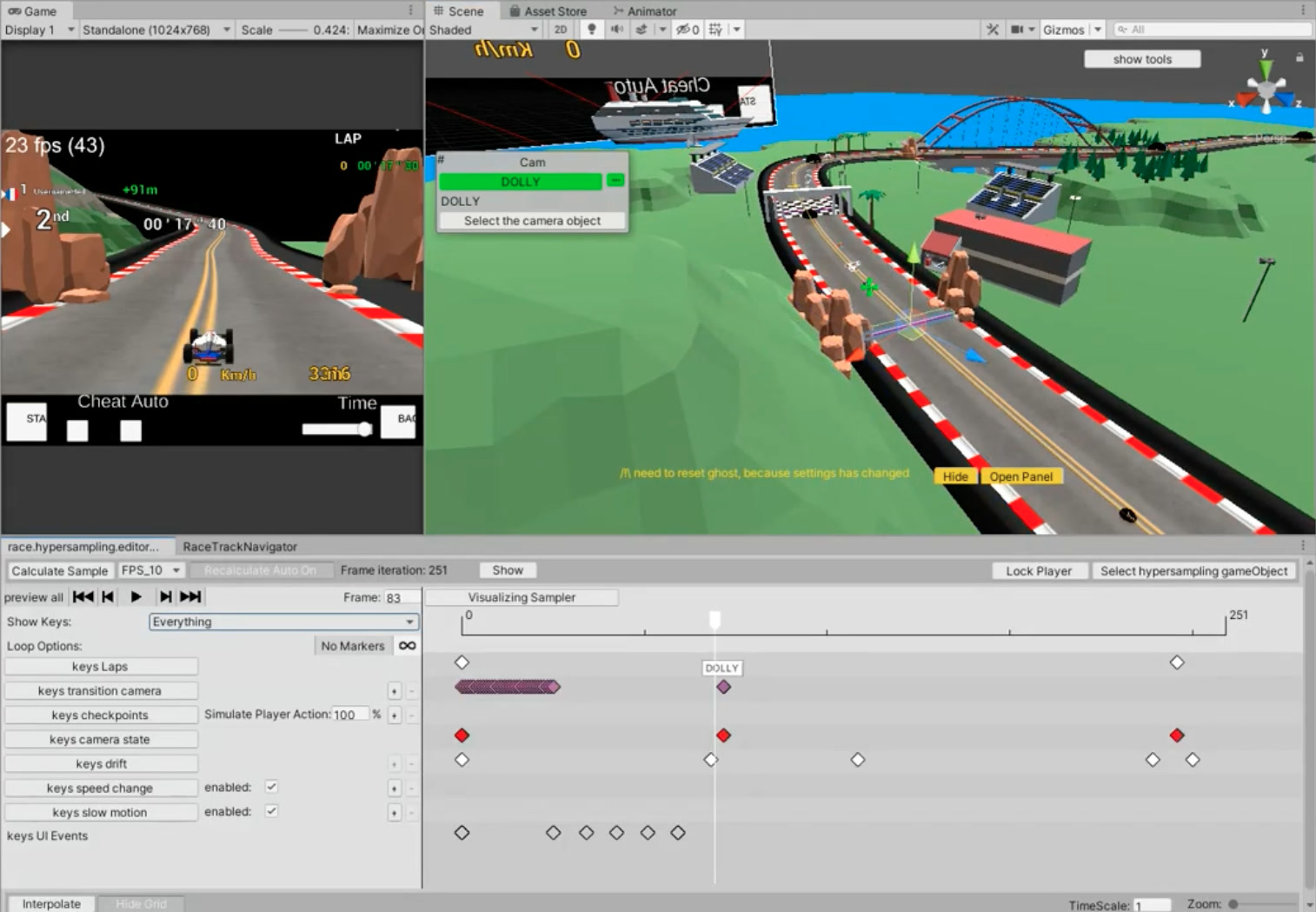
This is the heart of the toolset: one editor window that drives the whole race in real time. It manages the checkpoints, the camera position and angle at every moment, and the car's slides, all on one timeline that the designer can scrub, play and edit while the game runs.
How it works: the race is sampled. "Calculate Sample" simulates the race along the track at a chosen rate
(here FPS_10, ten samples per second) and stores every frame: 251 frames for this lap. A ghost car replays the
samples, and when a setting changes, the tool warns that the ghost needs a reset ("need to reset ghost, because
settings has changed"), or recalculates it on its own with "Recalculate Auto". "Simulate Player Action: 100 %"
sets how much of the player's input the simulation plays, from a perfect run to a lazy one.
The timeline (bottom right) goes from frame 0 to 251, with a cursor (here on frame 83) that moves the car, the camera and the game view together. Each line is a track of keys, filtered with "Show Keys":
- keys Laps: the start and the end of each lap,
- keys transition camera: when to switch camera, and how (here a blend into the DOLLY camera),
- keys checkpoints: the race checkpoints (red), used for the ranking and the lap times,
- keys camera state: the state of the active camera at each moment: its position and its angle,
- keys drift: where the car slides in the turns,
- keys speed change and keys slow motion: speed ratio and slow-motion moments, each can be switched off,
- keys UI Events: when the interface reacts (messages, effects).
The playback bar previews everything (first, previous, play, next, last), with loop options and markers, and a "Lock Player" button to keep the car under the camera. "Interpolate", the time scale and the zoom sit at the bottom.
In the Scene view, the "Cam" panel picks the camera of the current key (here DOLLY) and selects its object, so it can be moved directly; the Game view on the left shows the result as the player sees it: position (2nd), lap time, distance to the next car (+91 m), speed, and the "Cheat" and "Auto" toggles used to test the race.
Tools that work in Play mode and in the editor
Both worlds have their limits:
- Play mode: changes to prefabs and assets must be saved by hand, testing on a device (Vuforia) is not that practical, and the tools get too tied to the build;
- Editor mode: editor time is not the game loop, there are no Cinemachine blends, and the input is different.
So the tools run in both, with smooth motion in the editor too: [ExecuteInEditMode], the
EditorApplication.update event, QueuePlayerLoopUpdate(), and a custom class for time and time scale (the idea
behind my devlog Time, TimeScale and DeltaTime in the editor).
A global editor
Everything in one place:
- selection and tooltips right in the Scene view, no need for the Inspector or the Hierarchy,
- every editor is wrapped in its own window, which remembers its position.
Level design on the spline
Objects are locked on the spline, with four rotation modes:
- follow the spline,
- follow the spline and stay upright,
- don't follow the spline,
- don't follow the spline and stay upright.
The same spline and camera tools were then reused for Viper, a plane prototype.
What I took away
- A broader understanding of how the video game industry works, next to a veteran creative director.
- Editor tools, and a much deeper knowledge of Unity.
- An entertaining approach to gameplay: what the player feels matters more than what they press.
- On the personal side: applied mathematics, and code architecture.