Composants EditorOnly et actions au moment du build

On veut parfois que certains composants soient présents sur un GameObject, mais les retirer une fois en mode Play. Le script présenté ici supprime tous les composants dont vous ne voulez pas dans le build.
Il fournit aussi une liste d’actions UnityEvent déclenchées quand on passe en mode Play, ou quand on build le jeu.
GameObjects EditorOnly
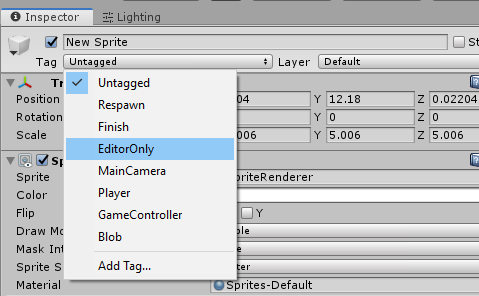
Aujourd’hui, pour qu’un GameObject soit EditorOnly, Unity fournit un tag prévu pour ça : les GameObjects avec le tag EditorOnly sont retirés au moment du build.
Malheureusement, impossible de le préciser composant par composant. J’ai donc écrit deux scripts pour contourner ce problème.
Utilisation
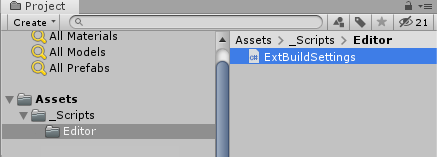
D’abord, placez ExtBuildSettings.cs dans n’importe quel dossier Editor/ de votre projet. Les deux autres scripts doivent être hors du dossier Editor : mettez-les dans votre dossier de scripts habituel.
Ensuite, placez autant de scripts EditorOnlyCleaning.cs que vous voulez dans votre hiérarchie. Voir l’exemple ci-dessous :
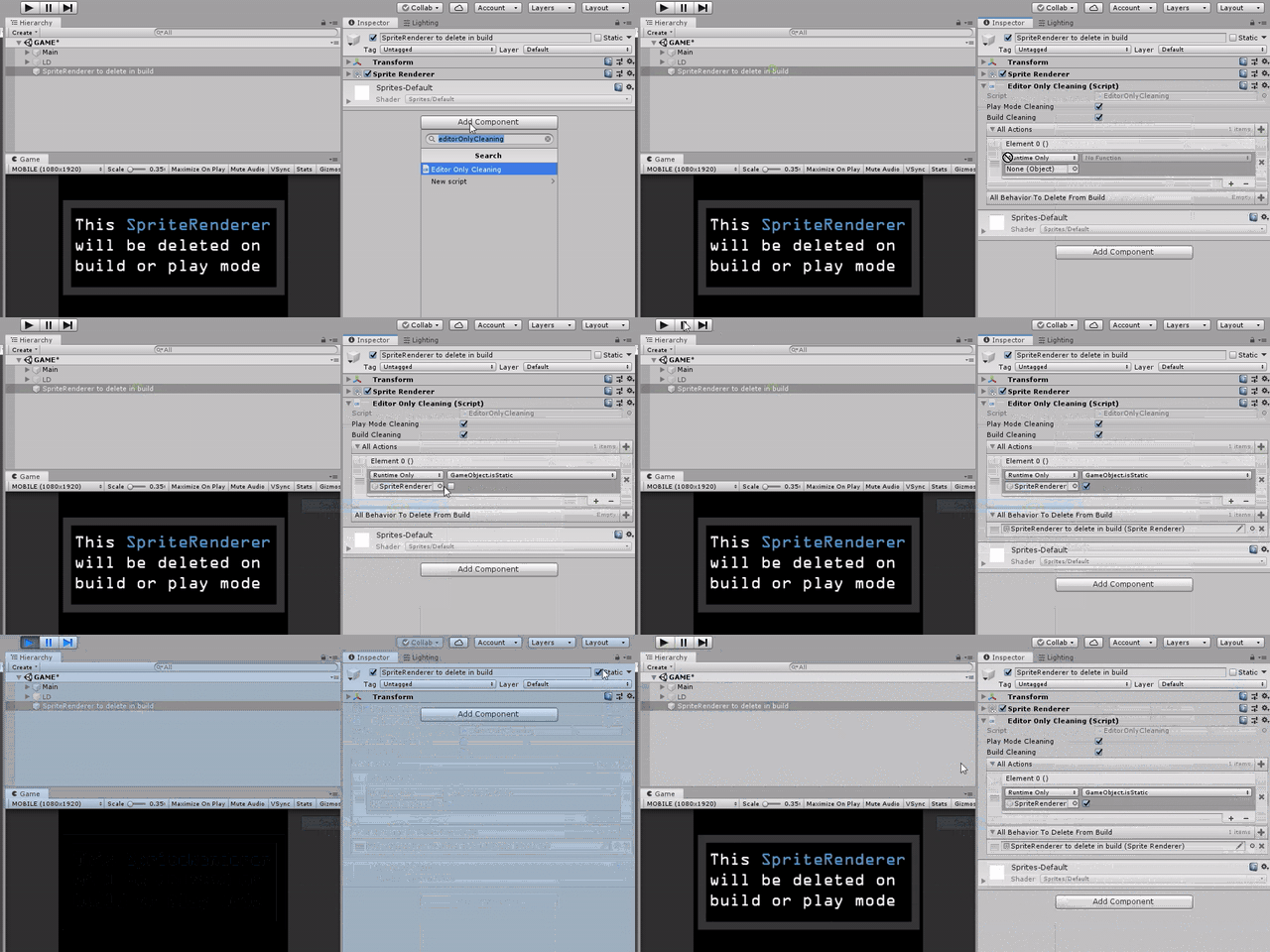
Étapes :
- Ajoutez un script
EditorOnlyCleaning.csà un GameObject. - Ajoutez autant de
UnityEventque vous voulez à la liste AllAction. Ces actions seront déclenchées dans l’ordre. - Ajoutez tous les composants à détruire en mode Play ou dans le build.
Quand vous passez en mode Play, ou quand vous buildez l’application, chaque script EditorOnlyCleaning.cs va :
- exécuter toutes ses actions
UnityEventdans l’ordre donné, - retirer tous les composants de sa liste,
- se retirer lui-même.
N’en abusez pas : ces scripts peuvent semer la confusion entre l’éditeur, le mode Play et le build. Je recommande un seul script EditorOnlyCleaning.cs par scène. Sinon, utilisez-le avec prudence, nommez bien vos GameObjects et gardez une hiérarchie organisée.
Si des GameObjects entiers sont marqués EditorOnly, vous voudrez peut-être les cacher à la caméra de jeu, ou à la Scene view. Voir mon article à ce sujet : Cacher des GameObjects à la caméra de jeu ou à la Scene view.
Scripts
EditorOnlyCleaning.cs
/// <summary>
/// MIT License - Copyright(c) 2019 Ugo Belfiore
/// </summary>

using System.Collections.Generic;
using UnityEngine;
using UnityEngine.Events;

/// <summary>
/// Remove Components marked as EditorOnly, and execute actions when you building your game
/// ExecuteBuildCleaning is called thanks to BuildCallBack().
/// This function will also get called when entering Playmode, when SceneManager.LoadScene is called.
/// if you want to desactivate this behavior, set PlayModeCleaning to false
/// </summary>
public class EditorOnlyCleaning : MonoBehaviour
{
    public bool PlayModeCleaning = true;    //active the cleaning when entering in play mode
    public bool BuildCleaning = true;       //active the cleaning when building

    //all action you want to do
    public List<UnityEvent> AllActions = new List<UnityEvent>();
    //all Component you want to delete
    public List<Component> AllBehaviorToDeleteFromBuild = new List<Component>();

    /// <summary>
    /// - Call all action
    /// - Delete all behavior
    /// - Delete itself
    /// </summary>
    public void ExecuteBuildCleaning()
    {
        if (!BuildCleaning || (Application.isPlaying && !PlayModeCleaning))
        {
            return;
        }
        ExecuteUnityEventAction();
        RemoveAllComponents();
        RemoveItself();
    }

    /// <summary>
    /// execute all UnityEvent action
    /// We theoricly could have only one UnityEvent with multiple action,
    /// but then we can't prediect the order of actions.
    /// Here with a list of UnityEvent, we manage the order ourself.
    /// </summary>
    private void ExecuteUnityEventAction()
    {
        for (int i = 0; i < AllActions.Count; i++)
        {
            AllActions[i].Invoke();
        }
    }

    /// <summary>
    /// Delete every components in the list
    /// </summary>
    private void RemoveAllComponents()
    {
        for (int i = 0; i < AllBehaviorToDeleteFromBuild.Count; i++)
        {
            if (AllBehaviorToDeleteFromBuild[i] == null)
            {
                continue;
            }

            if (Application.isPlaying)
            {
                Destroy(AllBehaviorToDeleteFromBuild[i]);
            }
            else
            {
                DestroyImmediate(AllBehaviorToDeleteFromBuild[i]);
            }
        }
    }

    /// <summary>
    /// Remove the script component this
    /// </summary>
    private void RemoveItself()
    {
        if (Application.isPlaying)
        {
            Destroy(this);
        }
        else
        {
            DestroyImmediate(this);
        }
    }
}
ExtBuildSettings.cs
/// <summary>
/// MIT License - Copyright(c) 2019 Ugo Belfiore
/// </summary>

using UnityEditor.Callbacks;

/// <summary>
/// useful functions linked to the building process
/// <summary>
public static class ExtBuildSettings
{
    [PostProcessScene(0)]
    private static void BuildCallBack()
    {
        EditorOnlyCleaning[] editorOnlyCleanings = ExtUtilityFunction.GetScripts<EditorOnlyCleaning>();
        for (int i = 0; i < editorOnlyCleanings.Length; i++)
        {
            editorOnlyCleanings[i].ExecuteBuildCleaning();
        }
    }
}
ExtUtilityFunction.cs
/// <summary>
/// MIT License - Copyright(c) 2019 Ugo Belfiore
/// </summary>

/// <summary>
/// Useful runtime functions
/// <summary>
public static class ExtUtilityFunction
{
    /// <summary>
    /// Get a script. Use it only in editor, it's extremly expensive in performance
    /// use: MyScript myScript = ExtUtilityFunction.GetScript<MyScript>();
    /// </summary>
    /// <typeparam name="T">type of script</typeparam>
    /// <returns>return the script found, or null if nothing found</returns>
    public static T GetScript<T>()
    {
        object obj = UnityEngine.Object.FindObjectOfType(typeof(T));

        if (obj != null)
        {
            return ((T)obj);
        }
        return (default(T));
    }

    /// <summary>
    /// Get a list of scripts. Use it only in editor, it's extremly expensive in performance
    /// use: MyScript [] myScript = ExtUtilityFunction.GetScripts<MyScript>();
    /// </summary>
    /// <typeparam name="T">type of script</typeparam>
    /// <returns>return the array of script found</returns>
    public static T[] GetScripts<T>()
    {
        object[] obj = UnityEngine.Object.FindObjectsOfType(typeof(T));
        T[] objType = new T[obj.Length];


        if (obj != null)
        {
            for (int i = 0; i < obj.Length; i++)
            {
                objType[i] = (T)obj[i];
            }
        }

        return (objType);
    }
}
Comment ça marche
Quand vous buildez le jeu, la fonction BuildCallBack(); du script ExtBuildSettings.cs est déclenchée, grâce à l’attribut [PostProcessScene(0)].
Cette fonction trouve chaque script EditorOnlyCleaning.cs dans chaque scène, et exécute leurs actions kamikazes.
Fichiers source
Voir aussi
- Cacher des GameObjects à la caméra de jeu ou à la Scene view : cacher des GameObjects à la caméra de jeu, ou à la Scene view, sans les désactiver.