Easy multi-scene editing: load scene groups in editor or at runtime in a single click

This tool allows you to quickly load a group of scenes in Unity. It works in the editor, but can also be used for gameplay. It is easy to set up with drag & drop, and it keeps track of GameObjects between scenes.
Demonstration
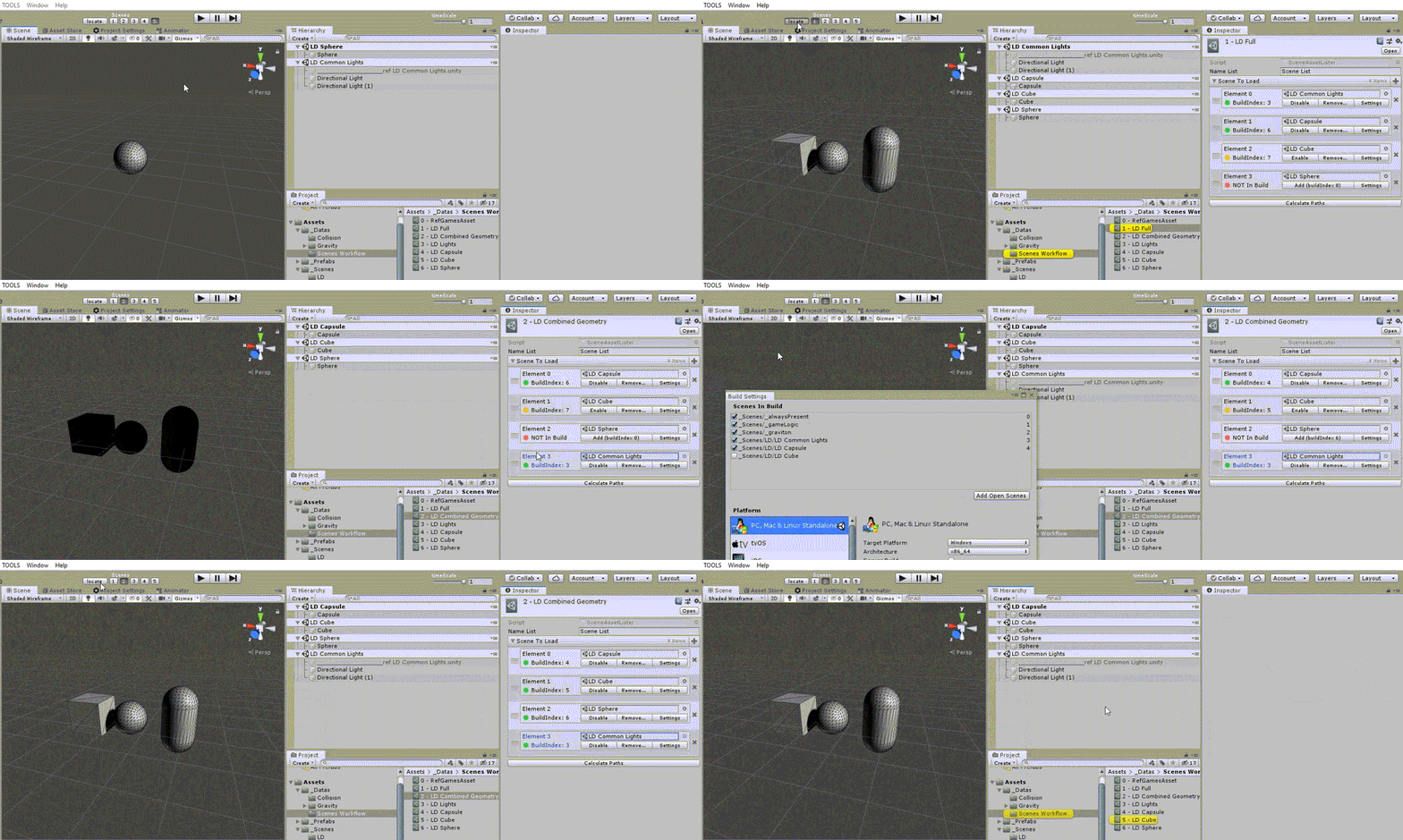
In this demonstration, the light scene was missing from the second group of scenes. Here, you can see how easy it is to add a scene and load it.
Scene Asset Lister
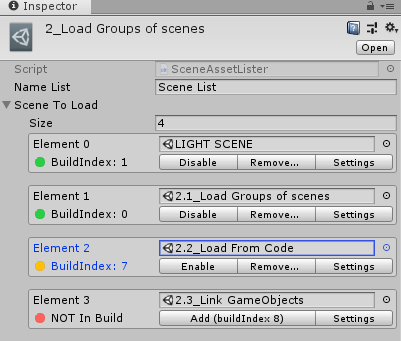
A group is composed of multiple scenes, which can be dragged & dropped like in any asset selector, with some useful compact settings:
- Drag & drop scene assets only
- Add to the build at the last index
- Enable or disable from the build
- Show the Build Settings
- Show the scene status in the build: enabled, disabled, not in build
- Show the build index if the scene is in the build

You also get a nice feature to clean up deleted scenes still present inside the Build Settings.
Keep a reference to a GameObject in other scenes
Thanks to the Unity developers, I have added a nice feature to this tool pack: the possibility to keep GameObjects linked across separate scenes.
Set a GuidComponent
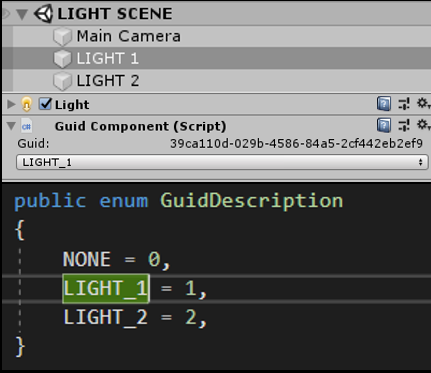
We set a unique GuidComponent on the GameObject we want to keep track of, and assign an enum to it for simplicity of use in your project.
Keep a link to this GuidComponent
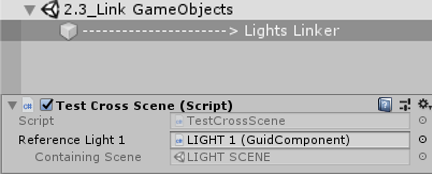
Then, in any script in another scene, create a reference to a GuidComponent, and drag & drop it:
[SerializeField]
private GuidReference _referenceLight1;
Unity keeps the link even if scenes are closed and reopened!
The full code and a demo will be available soon on the Asset Store. Contact me if you are interested.