Hide GameObjects from the game camera or the scene view

Sometimes you want to show or hide some GameObjects without actually deactivating them in the hierarchy. This article shows two built-in methods to do the following:
- Hide/show GameObjects in game, but show them in the scene view
- Hide/show GameObjects in the scene view, but show them in game
Hide GameObjects from the main camera
First, you need to create a Layer named EditorOnly. Go to the Layers tab and create a new layer. Then apply this layer to all the GameObjects you want to hide from the game camera.
Here is where the magic happens: select your main camera, and disable the EditorOnly layer in its Culling Mask.
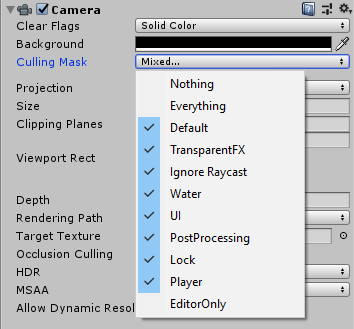
Enjoy the result below:
Hide GameObjects in the scene view
There are two ways of hiding GameObjects in the scene view in Unity.
Hide an entire layer
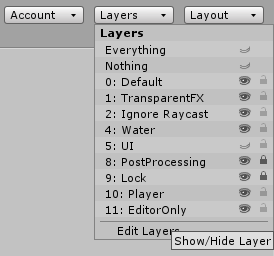
First, you can choose to hide an entire layer. Notice the little eye  next to each layer. You can click on it to hide or show all the GameObjects on that layer.
By the way, you can also lock layers, to disallow selection in the scene view.
Hide individual GameObjects (Unity 2019+)
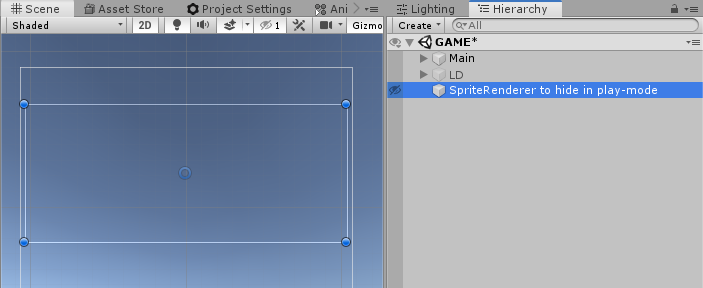
The second method requires a recent version of Unity. Since Unity 2019, you can also hide each GameObject individually, by clicking on the little eye next to each GameObject in the hierarchy.
If you have GameObjects that are never shown in the game, you could also tag them as EditorOnly (with a tag, not a layer) to simply remove them from the build. More info in my article EditorOnly components and actions when building.
See also
- EditorOnly components and actions when building: Remove components you don't want in the build while keeping them on GameObjects, and execute actions when building your application.
- Enhance the built-in components of Unity: Add behavior to any Unity component using custom inspectors and reflection.